Folder Setup
All of your sounds live in one place: a Configuration named SOUNDS inside ServerStorage.
VluxySF reads the layout of that Configuration once on the server to group your sounds and to know which ones to preload.
You do not need to create or assign SoundGroups yourself!
The basics
Legend:
⚙️ = Configuration Instance
📁 = Folder Instance
🔊 = Sound Instance
Example:
SOUNDS⚙️               ← The base Configuration
  ├─ MUSIC⚙️           ← Becomes the MUSIC SoundGroup
  │    ├─ mainTheme🔊  ← Grouped to MUSIC
  │    └─ battle🔊     ← Grouped to MUSIC
  └─ SFX⚙️             ← Becomes the SFX SoundGroup
        ├─ click🔊     ← Grouped to SFX
        └─ explosion🔊 ← Grouped to SFX
There are only three rules:
- Every direct child of
SOUNDSis aConfigurationwith a unique name. Each one becomes aSoundGroupwith the same name. AFolderorSoundplaced directly underSOUNDS, or two groups with the same name, makesInitServerthrow an error. - Every
Soundgoes inside one of those group Configurations. It is assigned to thatSoundGroupautomatically. - Every
Soundhas a unique name. The name is the key you fetch it with, likeVluxySF.Fetch("explosion"). If two sounds share a name, a warning is printed on the server and only the first one is kept.
Naming conventions
| Instance | Recommended | Required? |
|---|---|---|
| SoundGroup Configurations | UPPER_CASE | No, any name works |
| Folders | PascalCase | No, any name works |
| Sounds | PascalCase or camelCase | No, but the name must be unique |
Organizing with folders
Inside a group you can use Folders (📁) however you like. Any other instance that is not a Sound, such as a nested Configuration or a Model, is treated the same way as a Folder.
SOUNDS⚙️
  └─ SFX⚙️
      ├─ UI📁
      │    └─ click🔊
      └─ Game📁
          └─ explosion🔊
The hierarchy inside a group does not affect the library. Sounds are always fetched by name, so you can reorganize your folders at any time without touching your code.
Preloading sounds
Want certain sounds to be ready instantly? Give an instance the tag VluxySF_Preload, and every Sound under it is preloaded when the client starts.
- Tag a Sound to preload that one sound.
- Tag a Folder or any other container to preload every sound inside it.
- Tag a group Configuration to preload the whole group.
SOUNDS⚙️
  ├─ MUSIC⚙️
  │    ├─ mainTheme🔊
  │    └─ battles📁                      ← Tagged "VluxySF_Preload": both sounds inside preload
  │         ├─ importantSound1🔊
  │         └─ importantSound2🔊
  └─ SFX⚙️
        ├─ click🔊
        └─ explosions📁
             ├─ commonExplosion🔊         ← Tagged "VluxySF_Preload": only this sound preloads
             └─ uncommonLongExplosion🔊
You can add a tag in Studio from the Tags section at the bottom of the Properties window.
Only preload the sounds that need it. A preloaded sound stays in memory for the whole session, and there is no way to undo it. See Advice for more.
Preload timeout
InitClient yields until the tagged sounds are preloaded or the timeout passes. The timeout is in seconds and defaults to 5. If the timeout passes first, a warning is printed, InitClient returns, and the sounds keep loading in the background.
local ReplicatedStorage = game:GetService("ReplicatedStorage")

local VluxySF = require(ReplicatedStorage.Packages.VluxySF)

local preloadTimeout = 10
VluxySF.Startup.InitClient(preloadTimeout)

-- Reaches this line once the sounds are preloaded or the timeout is reached.
Pass 0 to not wait at all. No warning is printed. Check on the preloads later with Startup.IsPreloaded() or Startup.WaitForPreload().
VluxySF.Startup.InitClient(0)

-- Do other startup work here.

VluxySF.Startup.WaitForPreload()
See Startup for the full reference.
Configuring sounds
Set up each Sound in Studio exactly how you want it to play.
- Properties: Set
SoundId,Volume,PlaybackSpeed, and so on directly on theSound. A fetched sound comes out the way you authored it.Parent,Archivable, attributes, tags, read-only state such asIsPlayingandTimeLength, and deprecated properties such asPitch,MinDistance,MaxDistanceandEmitterSizeare not kept. - Effects: Add effects such as
EqualizerSoundEffectorReverbSoundEffectas children of theSound.
- Only
SoundEffectsare kept. Any other instance parented to aSoundis skipped with a warning. - Only one effect of each class is kept per
Sound. Extra ones are skipped with a warning. - A fetched effect is named after its class, so you can always reach it with
sound.EchoSoundEffect, whatever it was called in Studio. - A
SoundEffectcannot have children. Children are not kept, and a warning is printed.
End result
When you are done, your SOUNDS Configuration should look something like this in Studio:
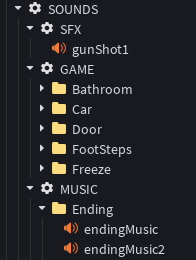
Keep the SOUNDS Configuration in ServerStorage so it never replicates to clients. InitServer takes the Configuration as an argument, so where exactly it sits is up to you.
Once InitServer has compiled it, the Configuration is detached right away and destroyed shortly after, once the calling thread yields or finishes. Nothing else should read from it after that.
Next step
Your sounds are ready. Continue to Initialization to start the library.